
AudioStation
Amateur Radio Audio Recorder & Playback System
Overview
AudioStation is a Windows application for amateur radio operators to record, store, and instantly play back audio messages — CQ calls, contest exchanges, emergency announcements, station ID, and more. All recordings are saved in mp3 format.
Getting Started
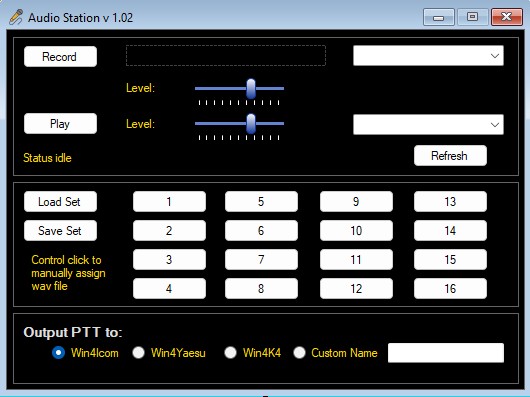
On launch, AudioStation automatically detects your recording and playback devices and loads 8 empty audio slots. No setup is required — just select your devices (if needed) and click Record.
Main Interface
| Section | Purpose |
|---|---|
| VU Meter | Real-time display of input audio level |
| Record / Play Buttons | Start/stop recording and playback |
| Level Controls | Adjust recording input and playback volume |
| Device Selection | Choose microphone and speaker/output |
| Audio Slots (1–8) | Quick-access buttons for stored recordings |
| Save Set / Load Set | Save or recall a collection of slot assignments |
| Output PTT to | Select which program asserts PTT |
| Status Bar | Shows current activity |
Recording Audio
- Click Record — the button turns red and reads “Stop Recording.” The VU meter becomes active.
- Speak your message.
- Click Stop Recording.
You’ll be asked: “Save this recording to a slot?”
- Yes → choose a slot (1–8) and give it a custom name.
- No → the recording isn’t lost — it’s automatically saved as
Last Recorded.wavin your AudioStation folder.
Playing Audio
Play any file: Click Play, browse to any .wav file, and it plays. Click Stop to end early.
Play from a slot: Click any numbered slot button (1–8). If assigned, it plays immediately.
Output PTT To
This option selects where the output of the audio is routed via a Named Pipe. Win4IcomSuite, Win4YaesuSuite and Win4K4Suite as well as a custom name can be selected. Each of these programs must have the same name in Tools Settings, External Connections:
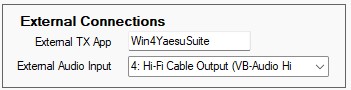
The defaults in the Audio Station are Win4IcomSuite, Win4YaesuSuite and Win4K4Suite and they must be the same in the applications.
In the case of the Yaesu radios there is an additional parameter called External Audio Input and this applies to the use of the SCULAN ONLY. It allows you to select which audio device will be used by Win4Yaesu to communicate with the radio if audio comes from the AudioStation. If you use the same audio device as is configured in the SCULAN settings then both the Audio Station and the mic for example will output sound simultaneously. If you use a VAC then the sound output will be only from the Audio Station. For more information please see the SCULAN documentation here:
Audio Slots
Assign right after recording: Choose “Yes” when prompted after stopping a recording, then pick a slot and enter a custom name (e.g., “CQ Contest,” “Emergency Net”).
Assign an existing file: Ctrl+Click any slot button to browse for a .wav file, then enter a custom name.
Play a slot: Just click it (no modifier key).
| State | Appearance |
|---|---|
| Empty | Gray, labeled “Slot 1,” “Slot 2,” etc. |
| Assigned | Light blue, labeled with your custom name |
Saving and Loading Slot Sets
Save Set writes all 8 slot assignments (file paths + custom names) to an .xml file. Load Set restores a previously saved configuration, updating all slot buttons.
Tip: Keep separate sets for different scenarios — ContestSet.xml, EmergencyNetSet.xml, DailySet.xml — and load whichever fits your current activity.
Audio Device Selection
Choose your Recording Device (microphone/interface input) and Playback Device (speaker/headset/interface output) from the dropdowns. If you plug in new hardware while the app is running, click Refresh Devices to rescan without restarting.
Level Controls
- Recording Level — scales VU meter sensitivity and recording “hotness”
- Playback Level — adjusts playback volume in real time
The VU Meter
- Green — safe level
- Yellow — approaching hot
- Red — too strong; reduce recording level or backing off the mic
File Locations
Documents\AudioRecorder\Contains named slot recordings, Last Recorded.wav, and any saved .xml set files.
Troubleshooting
No sound recorded / VU meter idle — check Recording Device selection, click Refresh Devices, check Windows mute settings.
Silent playback — check Playback Device selection and Playback Level slider.
Slot won’t play — it’s likely empty; Ctrl+Click to assign a file.
“No audio file assigned” — the slot is empty or its file was moved/deleted; reassign with Ctrl+Click.
Distorted recording — lower the Recording Level slider; your input is too hot.